A verification email can fail to appear for several ordinary reasons: the address was entered incorrectly, delivery is delayed, the message was filtered, the sender rejected the domain, or an older code became invalid after you requested a new one. Repeatedly pressing resend is rarely the best first response.
This guide provides a safe, practical checklist for a verification email not received in a regular or temporary inbox. It also explains which problems you can fix yourself, which problems belong to the sending website, and when you should use a permanent email address instead.
Why is my verification email not arriving?
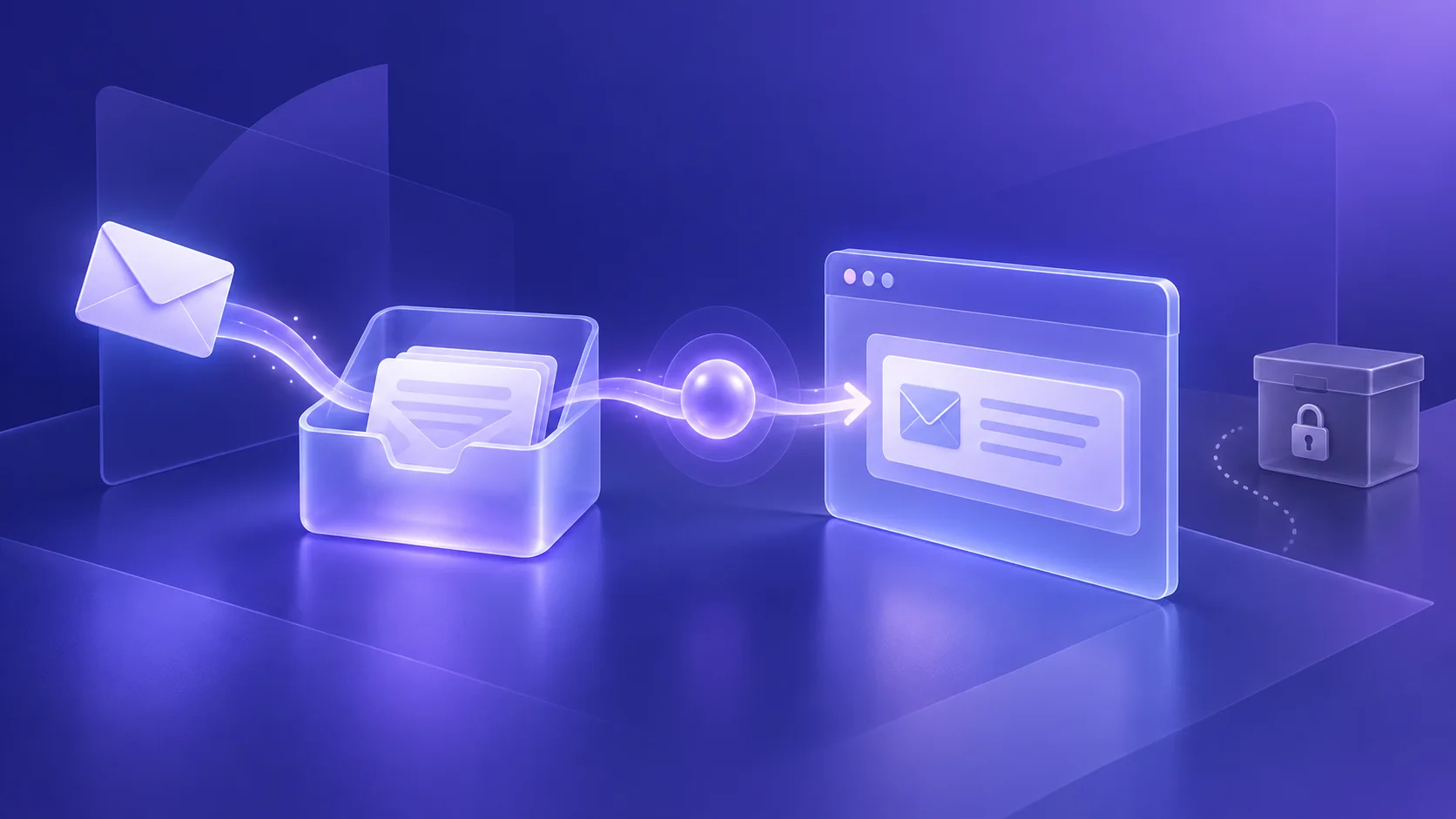
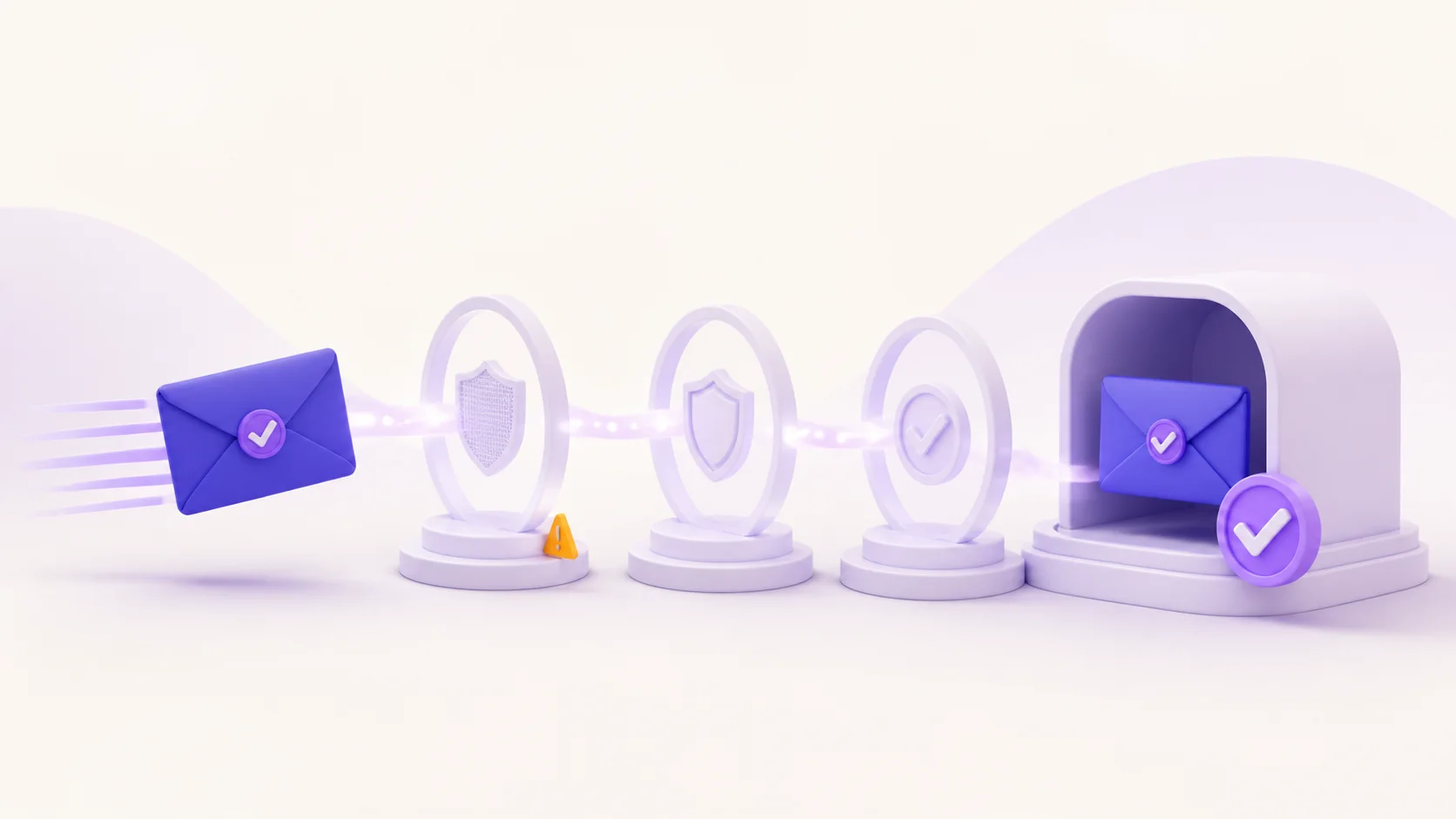
An email must pass through several systems before it reaches an inbox. The website first has to create the message and hand it to its email provider. That provider must find the receiving mail server, pass its security checks, and deliver the message to the correct mailbox. Finally, the inbox may categorize, delay, or reject it.
A missing message does not automatically mean your inbox is broken. The sender may have a queue problem, the address may contain a typo, or the website may intentionally decline temporary-email domains. Work through the checks below in order so that you do not create additional codes or lock yourself out.
Quick checklist before you request another code
- Confirm the exact email address shown by the website.
- Wait a few minutes and refresh the inbox once.
- Check spam, junk, promotions, and all-mail folders.
- Search for the website name, sender domain, and words such as “verify” or “code.”
- Make sure the mailbox still exists and has available storage.
- Request a new message only after the original delivery window has passed.
Never share a verification link or one-time code with another person. A legitimate support agent should not need the active code that proves control of your account.
1. Confirm that the email address is correct
Start with the address displayed on the confirmation screen or account settings page. Look for missing characters, duplicated letters, spaces, a misspelled domain, or an incorrect top-level domain. An address can look familiar while still pointing to a different or nonexistent mailbox.
If you copied a temporary address, compare it with the address currently shown in the inbox. Do not assume that reopening a temporary-email service always restores the same mailbox. For a step-by-step overview, see how to create a temporary email address safely.
When the website allows editing, correct the address before requesting another message. If it does not, contact the website rather than creating multiple registrations.
2. Wait for a reasonable delivery window
Verification messages are often fast, but they are not guaranteed to be instant. Busy sending queues, rate limits, temporary network problems, and additional security checks can add delay. Waiting five to fifteen minutes is reasonable before assuming the message has failed, unless the sender gives a different estimate.
Keep the relevant inbox page open and refresh normally. Avoid rapid automated refreshing or repeated resend requests. Excessive requests may trigger anti-abuse controls and can make troubleshooting harder.
3. Check spam, junk, promotions, and filtered folders
Permanent mailbox providers may place automated verification messages outside the main inbox. Review spam or junk, promotions, social, quarantine, and all-mail views. If you use a work or school account, an administrator may apply additional filtering that is not visible in your personal folders.
Search by the website's name and expected sender domain rather than relying only on the subject line. Attackers can imitate display names, so inspect the actual sender before opening a link. If the message looks unexpected or the domain is misspelled, return to the website directly instead of following the email.
4. Search for an existing verification message
A message may already be present but grouped into a conversation or buried below newer mail. Search for terms such as “verification,” “confirm,” “activate,” or the service name. Also check whether a previous request produced a message with a different subject.
Use the newest valid message only. Many services invalidate earlier links or codes whenever a replacement is issued. Trying older codes repeatedly can produce confusing “expired” or “invalid” errors even though delivery is working.
5. Check mailbox storage, filters, and blocked senders
A full permanent mailbox may reject new messages. Confirm that the account has storage available, then review custom filters, forwarding rules, blocked-sender lists, and automatic deletion rules. If you previously marked the sender as spam, future messages may be filtered more aggressively.
Do not broadly disable security controls. Make the smallest appropriate change, such as removing an accidental block for the confirmed sender. Our guide on protecting your email from spam explains why sender checks remain important even when you are waiting for a legitimate message.
6. Make sure the temporary inbox is still available
Temporary inboxes are designed for limited use. The address or its messages may not remain accessible after a session ends or a retention period passes. If you closed the inbox, changed devices, cleared browser data, or returned much later, you may no longer be viewing the address used during signup.
Review how long temporary emails last before relying on one. If future recovery, receipts, paid access, or personal records matter, use a permanent address that you control.
7. Consider whether the website accepts temporary email
Some websites block known disposable-email domains to reduce fraud, automated registrations, abandoned accounts, or abuse. The receiving website controls that policy. A temporary inbox provider cannot guarantee that every sender will accept or deliver to every domain.
If the website rejects temporary addresses, do not try to bypass its restriction by cycling through domains or creating duplicate accounts. Decide whether the service is appropriate to use with your permanent address. For the technical background, read how websites check whether an email address is disposable.
8. Request one new verification email
After checking the address and waiting, use the official resend control once. Then wait for the new message. Keep the website tab open if possible, because some verification flows connect the request to the current browser session.
When multiple messages arrive, start with the newest. Do not keep generating codes while testing older ones. Some services impose a cooldown, so respect any timer or rate-limit notice shown on the page.
9. Try the verification flow in the same browser session
Some links are tied to the browser, device, or login session that requested them. If you requested the message in one browser and opened it in another, the website may ask you to sign in again or may reject the link.
Return to the original website through a bookmark or manually typed address, confirm that you are still on the expected domain, and follow the website's instructions. Do not weaken browser security or install an unknown extension just to make a verification link work.
10. Contact the website that sends the message
If the address is correct and no message appears after a reasonable wait and one resend, the sender is best positioned to investigate. Its support team can check whether the message was generated, deferred, bounced, rate-limited, or rejected by policy.
Provide the time of the request, the destination domain, and a description of the error. Avoid posting your full email address or verification code in a public forum. If the account is important, ask whether support can update the address through an approved identity-verification process.
Special considerations for temporary email
A temporary inbox can be appropriate for a legitimate, low-risk confirmation that does not require long-term recovery. It is not suitable for banking, healthcare, work, education, government services, paid subscriptions, valuable purchases, or accounts containing sensitive information.
If you are new to the category, start with what temporary email is and how it works. The most important question is not whether the address can receive one message today, but whether losing it later would create a serious problem.
How to handle verification codes safely
- Use a code only on the website or app where you requested it.
- Never send the code to a person claiming to be support.
- Check the website domain before entering the code.
- Do not publish screenshots containing the address, code, or verification link.
- Stop if you receive a code you did not request; someone may have entered your address.
A code proves access to an inbox for a short period. Treat it like a password. If a message arrives unexpectedly, do not click its links to investigate. Open the relevant service directly and review account activity there.
Frequently asked questions
How long should a verification email take?
Many arrive within a few minutes, but delays vary by sender and receiving provider. Follow the estimate shown by the website and wait before requesting one replacement.
Why did the code arrive but fail?
The code may have expired, been replaced by a newer request, been entered incorrectly, or belong to a different session. Request one fresh code through the official website and use only the newest message.
Can MailsDrop guarantee delivery of a verification email?
No email provider can guarantee that every sender will accept an address or complete delivery. The sender may block temporary domains, delay the message, or reject the request before it reaches the receiving server.
Should I create another account if the email does not arrive?
Usually not. Duplicate registrations may violate the website's rules or make recovery more difficult. Correct the address, resend once, and contact the sender when the problem continues.
Bottom line
When a verification email is not received, confirm the address, wait, search every relevant folder, check mailbox limits, and request only one replacement. For temporary inboxes, confirm that you still control the same address and that the sender accepts disposable domains. Use a permanent mailbox for any account that matters long term, and never share an active verification code with anyone.